If you buy leads in the Oneday Pro Lead Center and work them in your own CRM, you’ve probably been copying them over by hand. That stops today.
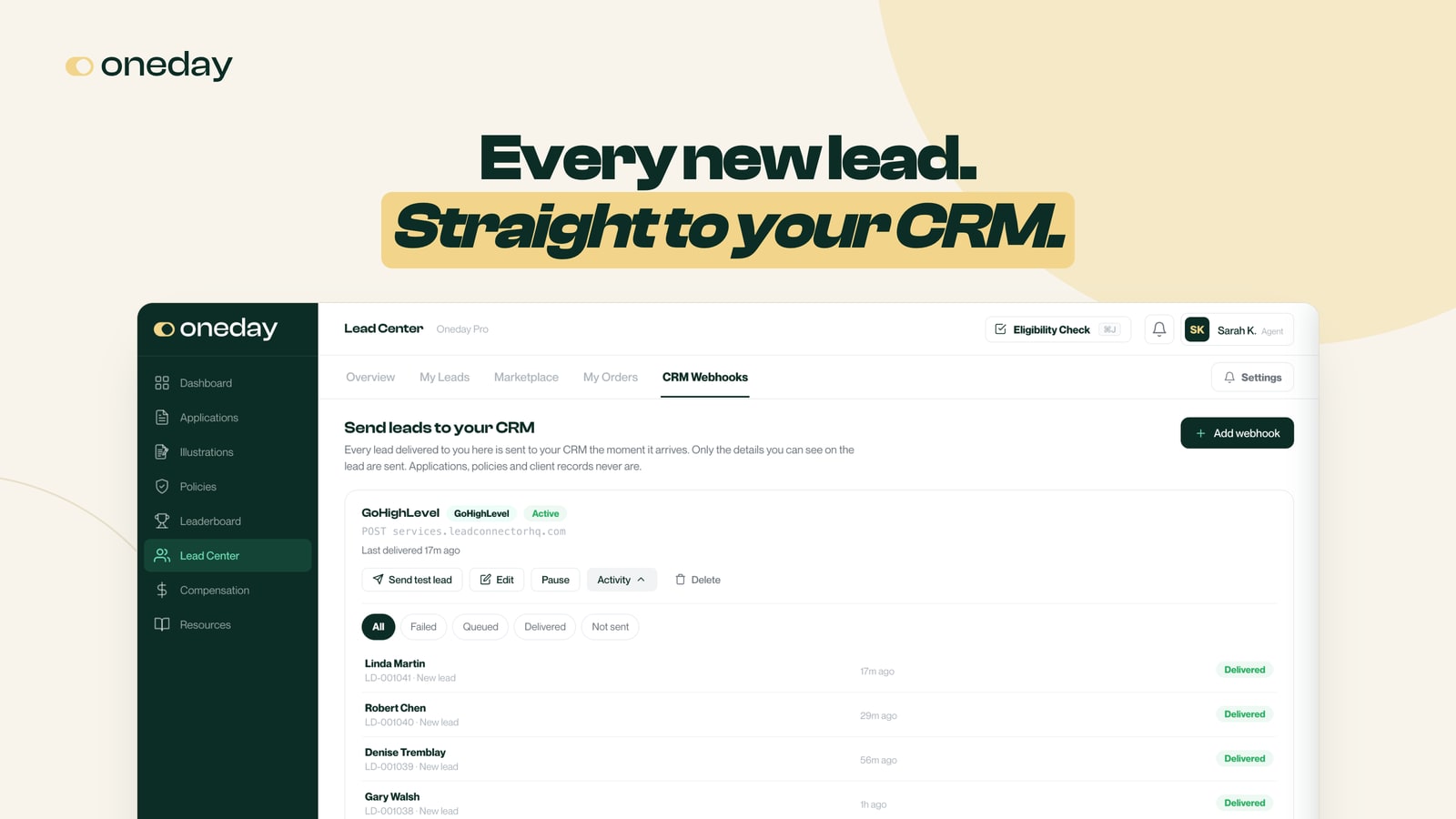
CRM Webhooks are now live in the Lead Center. Connect your CRM once, and every lead you buy is sent there automatically, a few seconds after it’s delivered to you. No copying, no exporting, no spreadsheets.
The short version
- In Oneday Pro, open Lead Center and click CRM Webhooks.
- Click Add webhook, pick your CRM, and paste the link your CRM gives you.
- Click Send test lead. When it turns green, click Save webhook.
That’s the whole setup. The rest of this post walks through each step with screenshots.
What’s a webhook?
A webhook is a link your CRM gives you for receiving new contacts. When a lead is delivered to you in the Lead Center, Oneday sends it to that link, and your CRM creates the contact.
You don’t need to write any code. You copy one link from your CRM and paste it into Oneday Pro.
It works with:
- GoHighLevel
- Ringy
- Zapier, which connects to thousands of other apps
- Any other CRM that gives you a webhook link
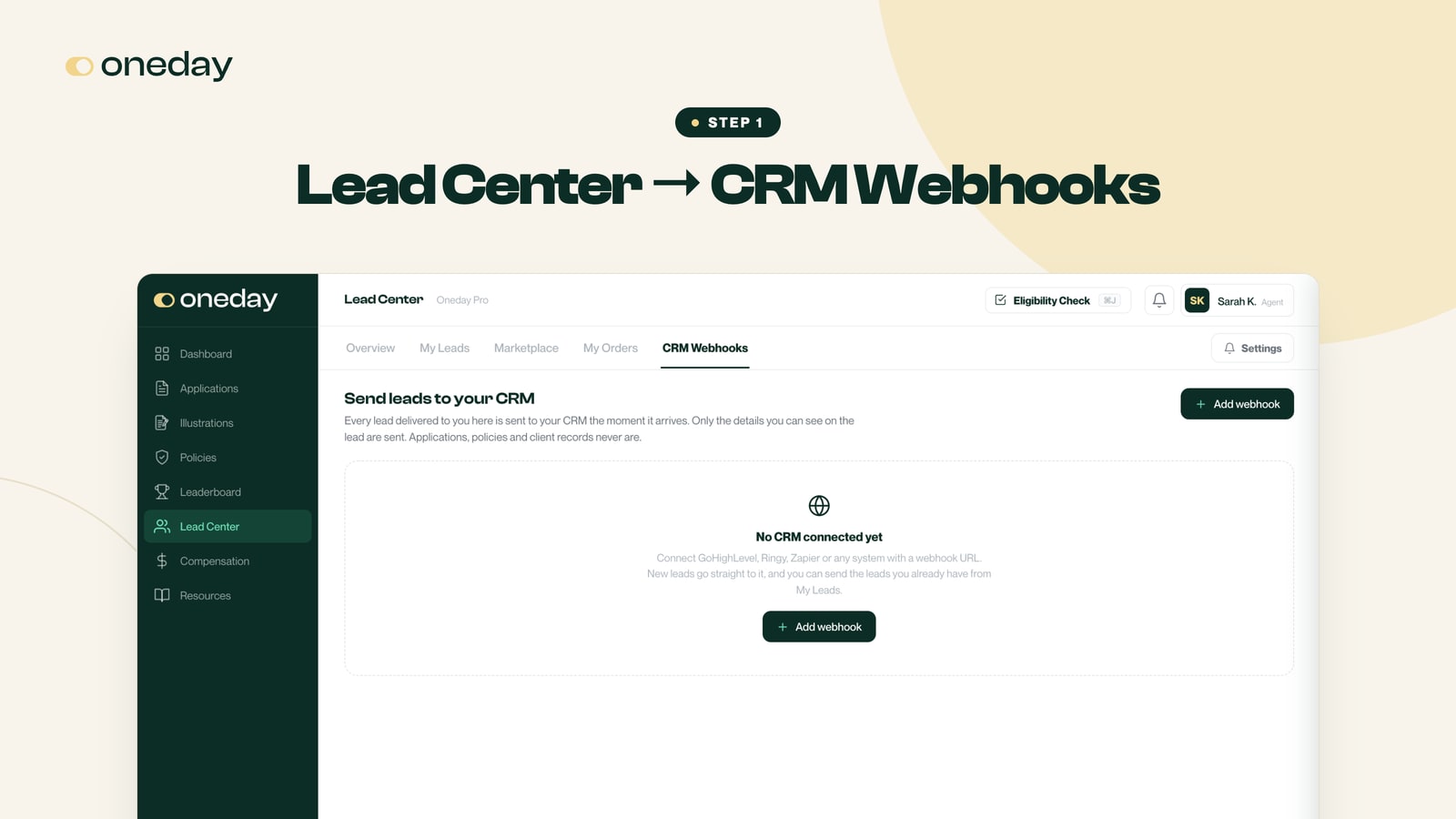
Step 1: Open CRM Webhooks
Log in to Oneday Pro, open Lead Center, and click the CRM Webhooks tab. Then click Add webhook.
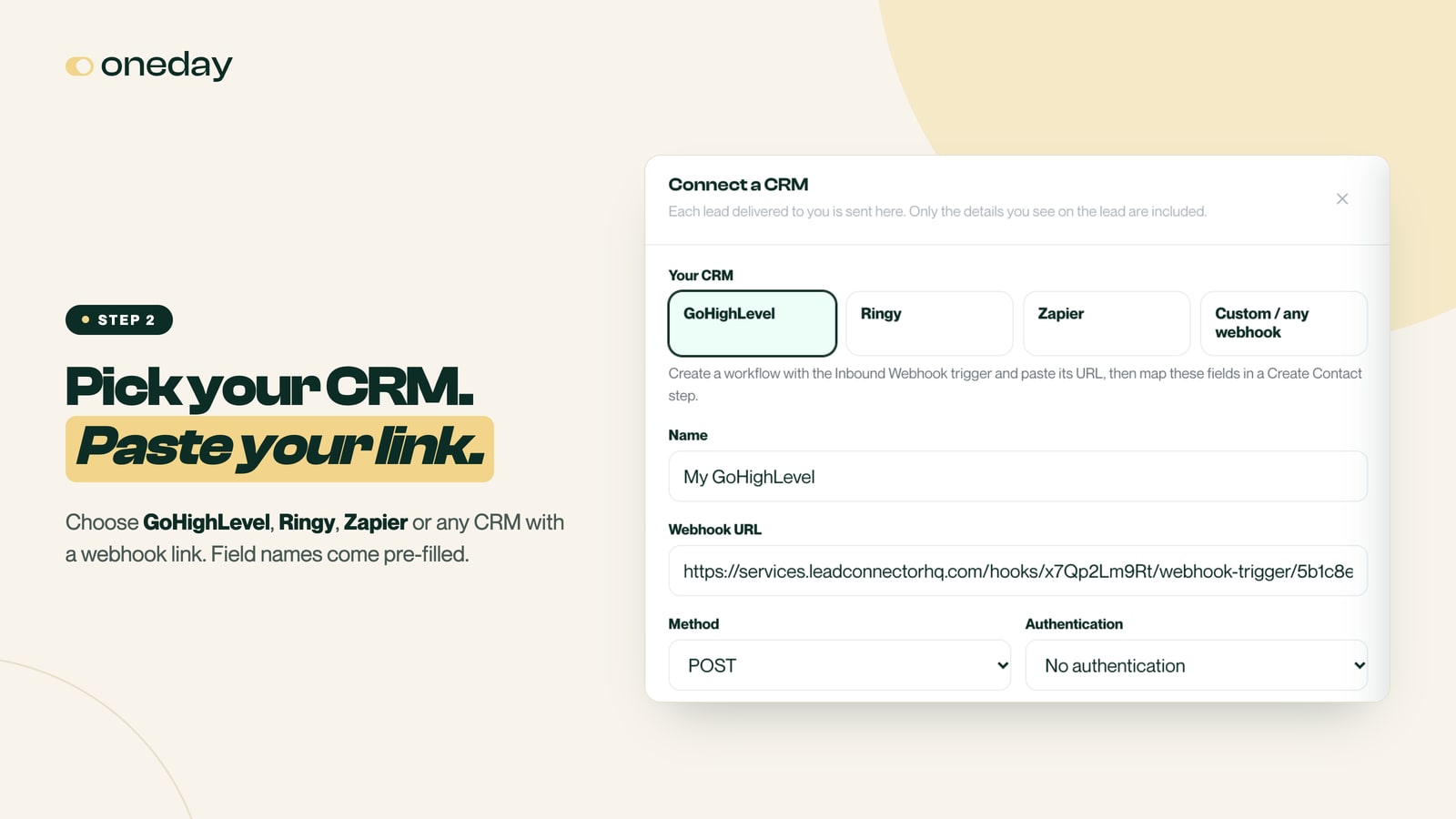
Step 2: Pick your CRM and paste your link
Choose your CRM from the list. Oneday fills in the field names for you, so the only thing you need is your webhook link. Here’s where to find it.
GoHighLevel. Create a new workflow and choose Inbound Webhook as the trigger. Copy the URL it gives you and paste it into Oneday Pro.
Ringy. The link is already filled in for you. Copy the SID and Auth Token from your Ringy lead source and paste them into the sid and authToken rows Oneday adds for you. They’re stored encrypted, and nobody can read them back, including Oneday staff.
Zapier. Create a Zap with Webhooks by Zapier as the trigger and Catch Hook as the event. Copy the URL and paste it into Oneday Pro. Then tell Zapier where each lead should go.
Anything else. Choose Custom / any webhook and paste your link. Oneday sends every detail you can see on the lead, with clear field names.
Step 3: Send a test lead, then save
Click Send test lead. Oneday sends a sample contact named “Test Lead” to your CRM right away.
If the box turns green, your CRM got it. Check that Test Lead shows up in your CRM, then click Save webhook.
If something’s off, Oneday shows you exactly what your CRM said back, so you can fix it before a single real lead is sent.
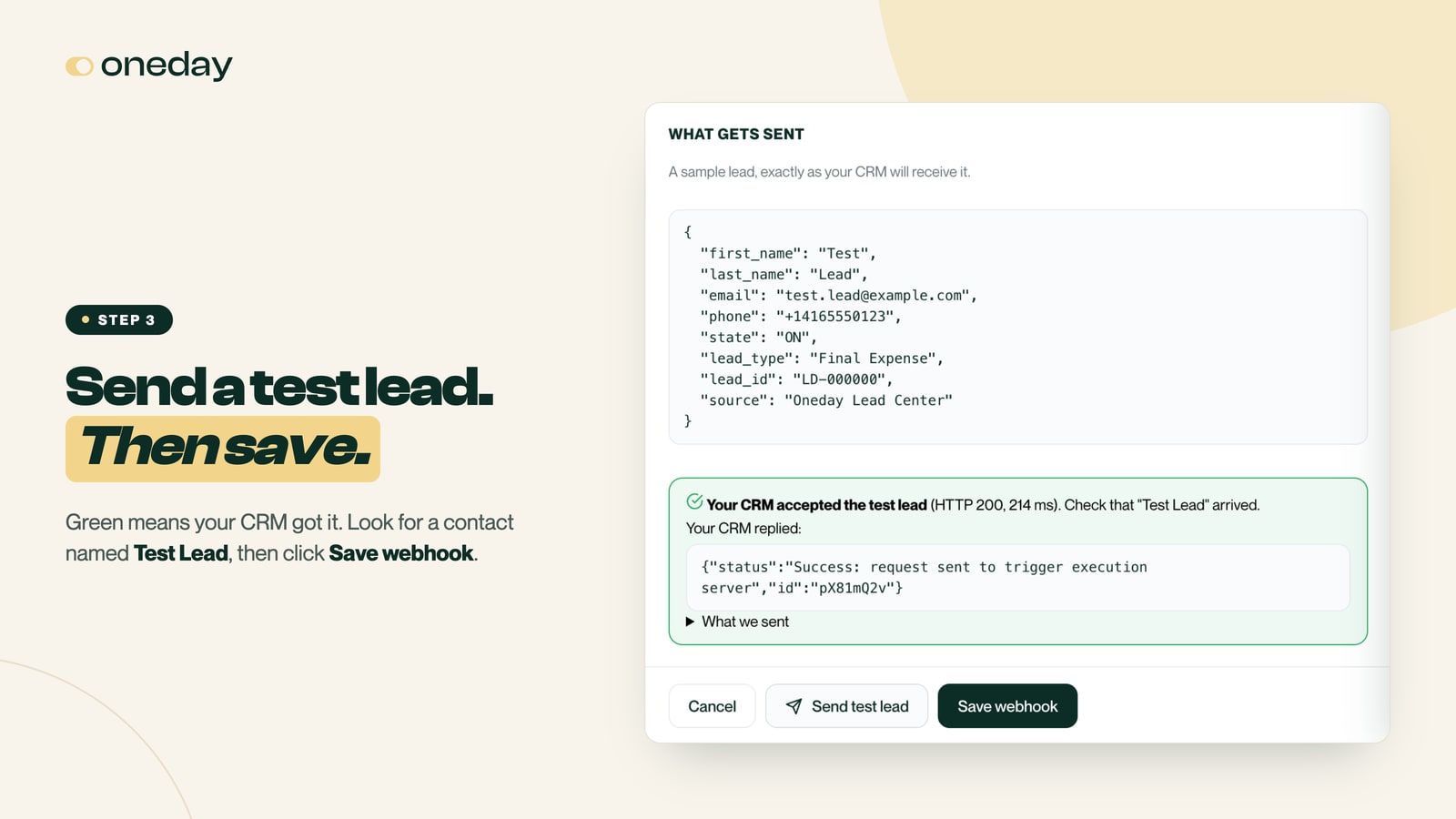
Using GoHighLevel? GoHighLevel uses the test lead to learn your fields. After you send it, go back to your workflow, add a Create Contact action that uses the fields from the test (first name, last name, email, phone), and publish the workflow. Send one more test lead from Oneday Pro and you’ll see the contact appear.
That’s it. Your leads arrive on their own
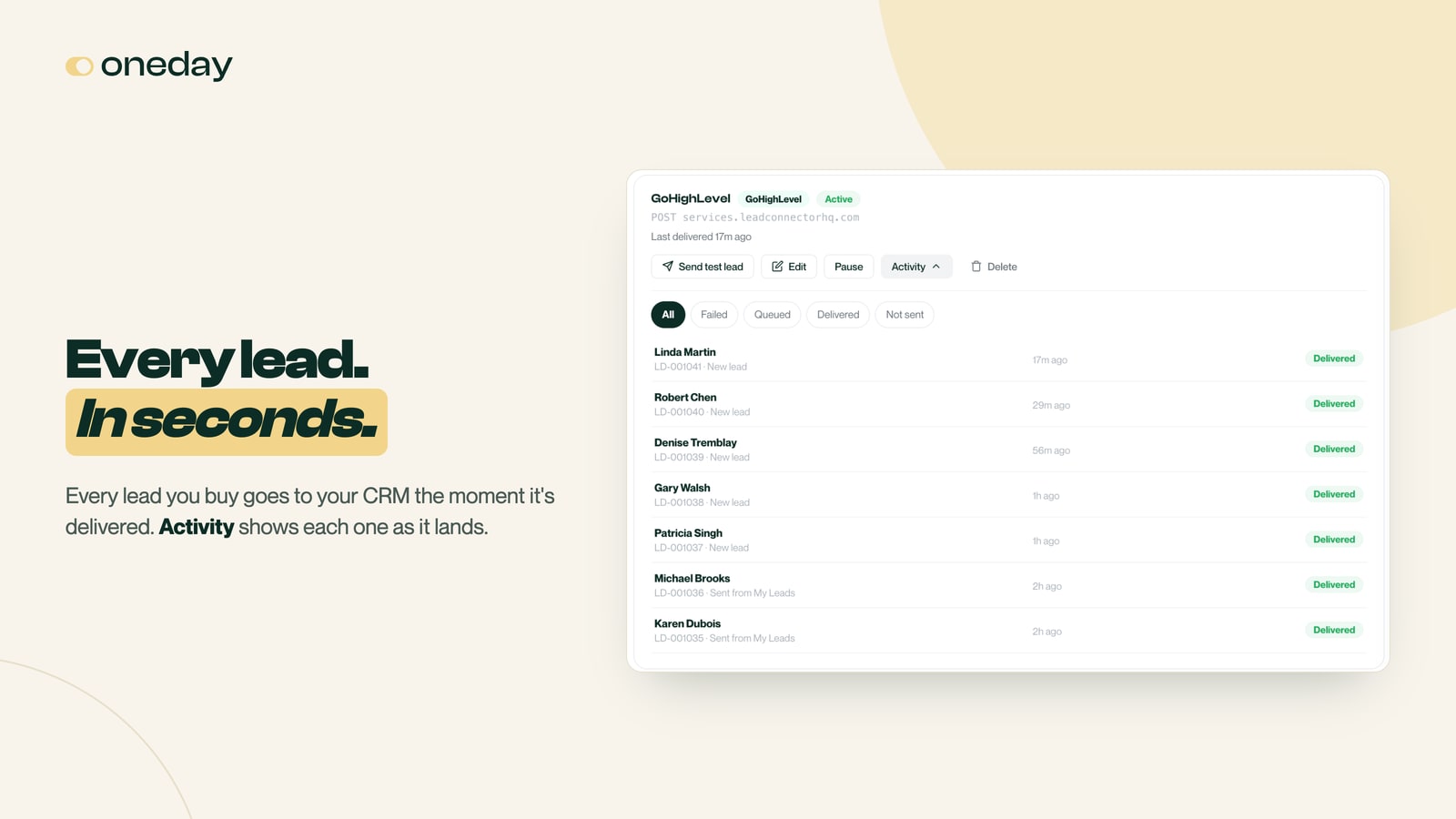
From now on, every lead you buy is sent to your CRM the moment it’s delivered to you. It usually takes a few seconds.
Click Activity on your webhook anytime to see every lead that was sent and whether your CRM received it.
Already have leads? Send them too
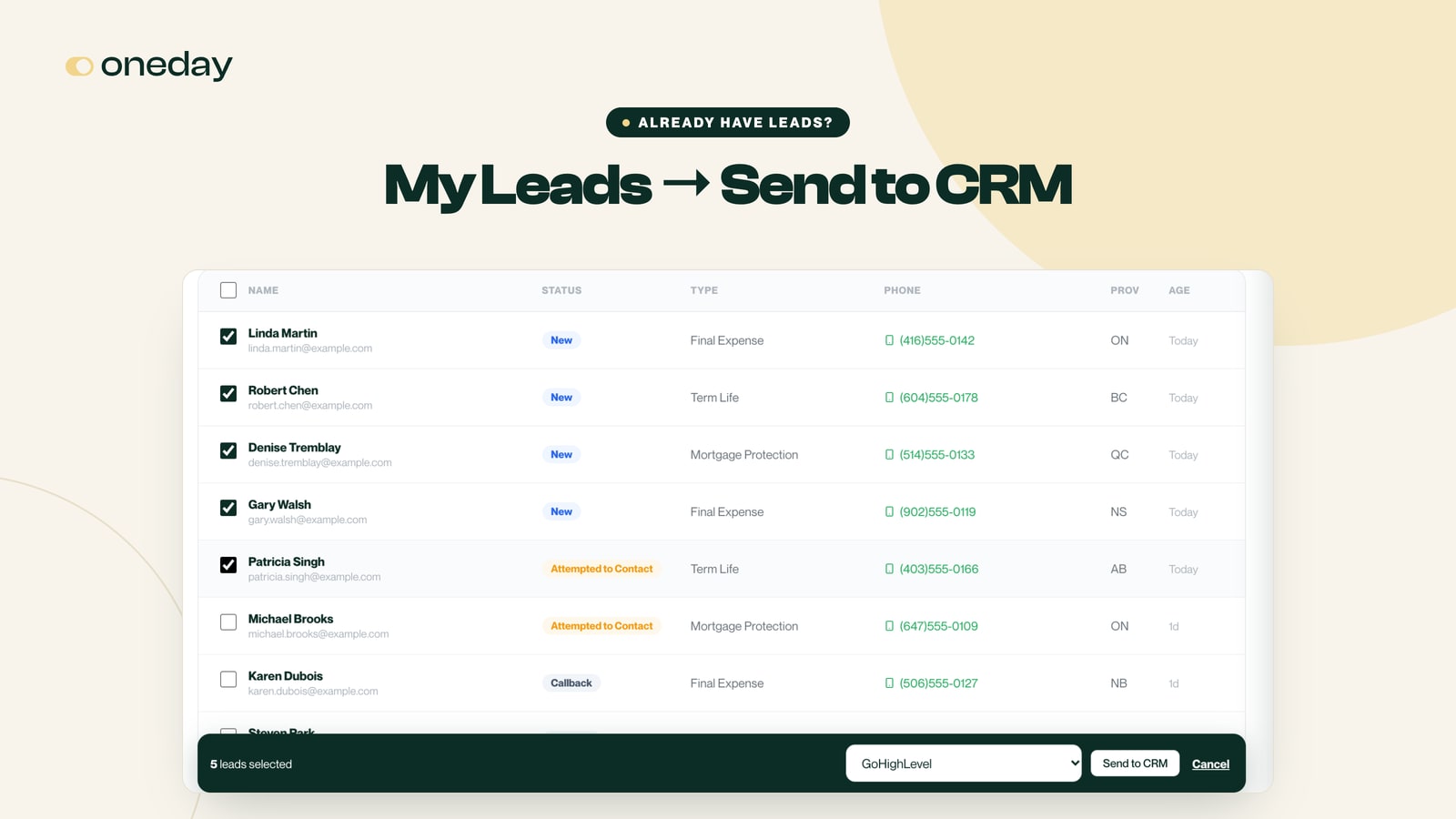
New leads go to your CRM automatically. You can also send the leads you already have.
Go to My Leads and click Send to CRM. Tick the leads you want, or select every lead that matches your filters. Pick your webhook and click Send to CRM. You can send up to 2,000 leads at a time.
What gets sent, and what never does
Only the details you can already see on the lead are sent: name, phone, email, province, lead type and lead number. Applications, policies and client records never leave Oneday Pro.
A few other things worth knowing:
- If your CRM is down, Oneday keeps retrying on its own for more than two hours, so a short outage doesn’t cost you a lead.
- You can pause a webhook anytime. Leads wait in line and go out as soon as you turn it back on.
- If a webhook keeps failing, Oneday pauses it and lets you know, so you can fix the link.
- You can connect up to five CRMs, and every new lead goes to all of them.
Available now
CRM Webhooks are live in the Lead Center today. Log in to Oneday Pro, open Lead Center, and click CRM Webhooks.
New to the Lead Center? Here’s how Live Leads work. Not contracted with Oneday yet? We’re onboarding Canadian life insurance advisors right now.