You sold the policy. A few months later, your client calls. They moved. Or they switched banks. Or they just had a baby and want to add her as a beneficiary.
Anywhere else, that’s a call to a service line. Hold music, a form to print, sign and fax, and then weeks of following up to find out whether the change ever made it onto the policy.
At Oneday, it’s a few clicks in your portal. Watch the 40-second demo above, or read on for the full walkthrough.
The short version
- Open your client’s policy in Oneday Pro, go to the Requests tab and click Request a change.
- Pick the change and fill in what’s new.
- Send it for signature. Your client signs by email.
You see every signature come in. Then our team takes it from there, and the change goes onto the policy, amendment letter included.
What you can request
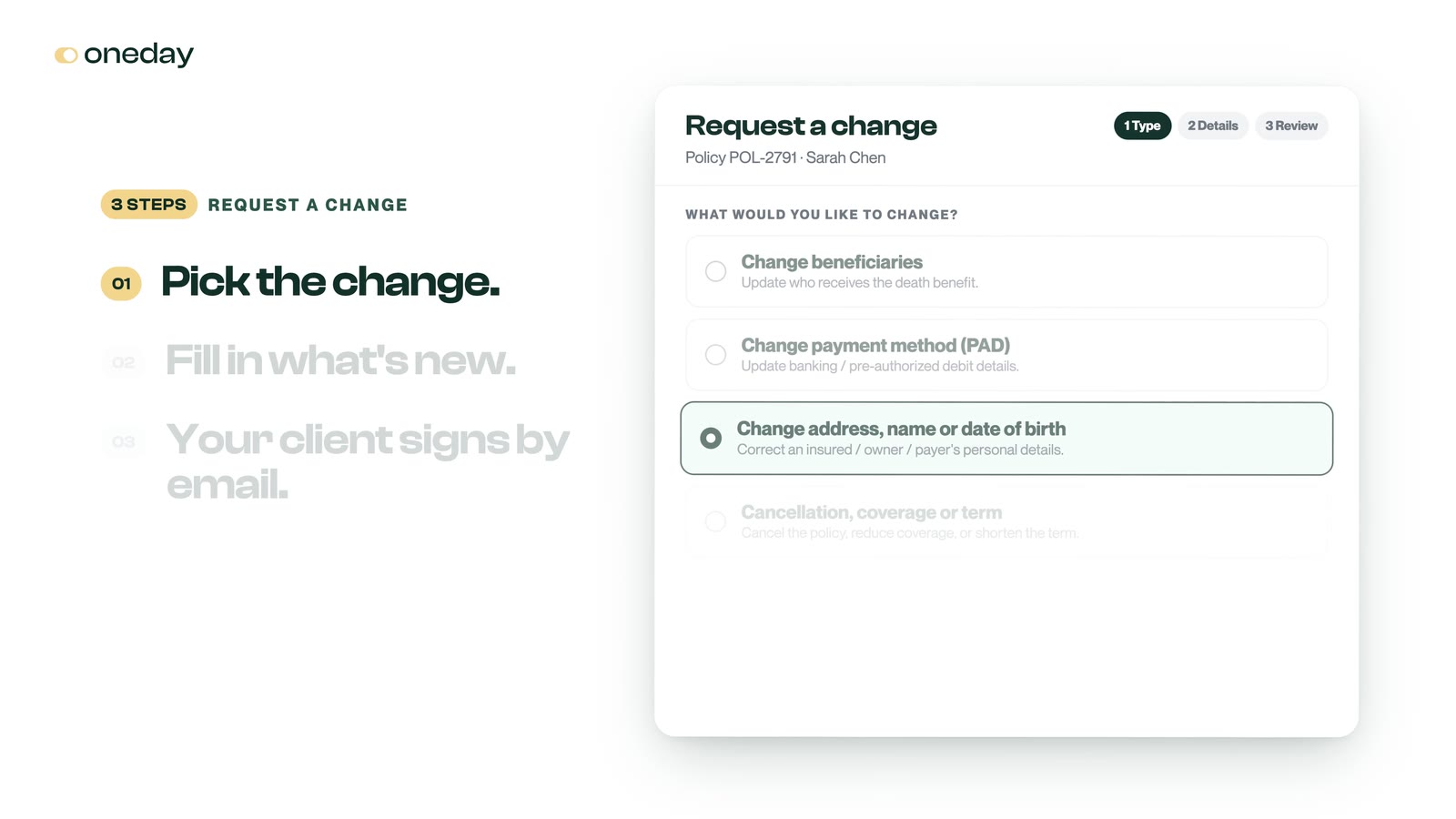
The Request a change button on every policy’s Requests tab covers the changes clients ask for most:
- Change beneficiaries. Update who receives the death benefit.
- Change payment method (PAD). Move the pre-authorized debit to a new bank account.
- Change address, name or date of birth. For the insured, the owner or the payer.
- Cancellation, coverage or term. Cancel the policy, reduce coverage, or shorten the term.
- Claim notification. Let our claims team know about a death claim.
Anything that isn’t on that list goes in a service request. More on that below.
Step 1: Open the policy
Go to Policies and open your client’s policy. On the Requests tab, click Request a change.
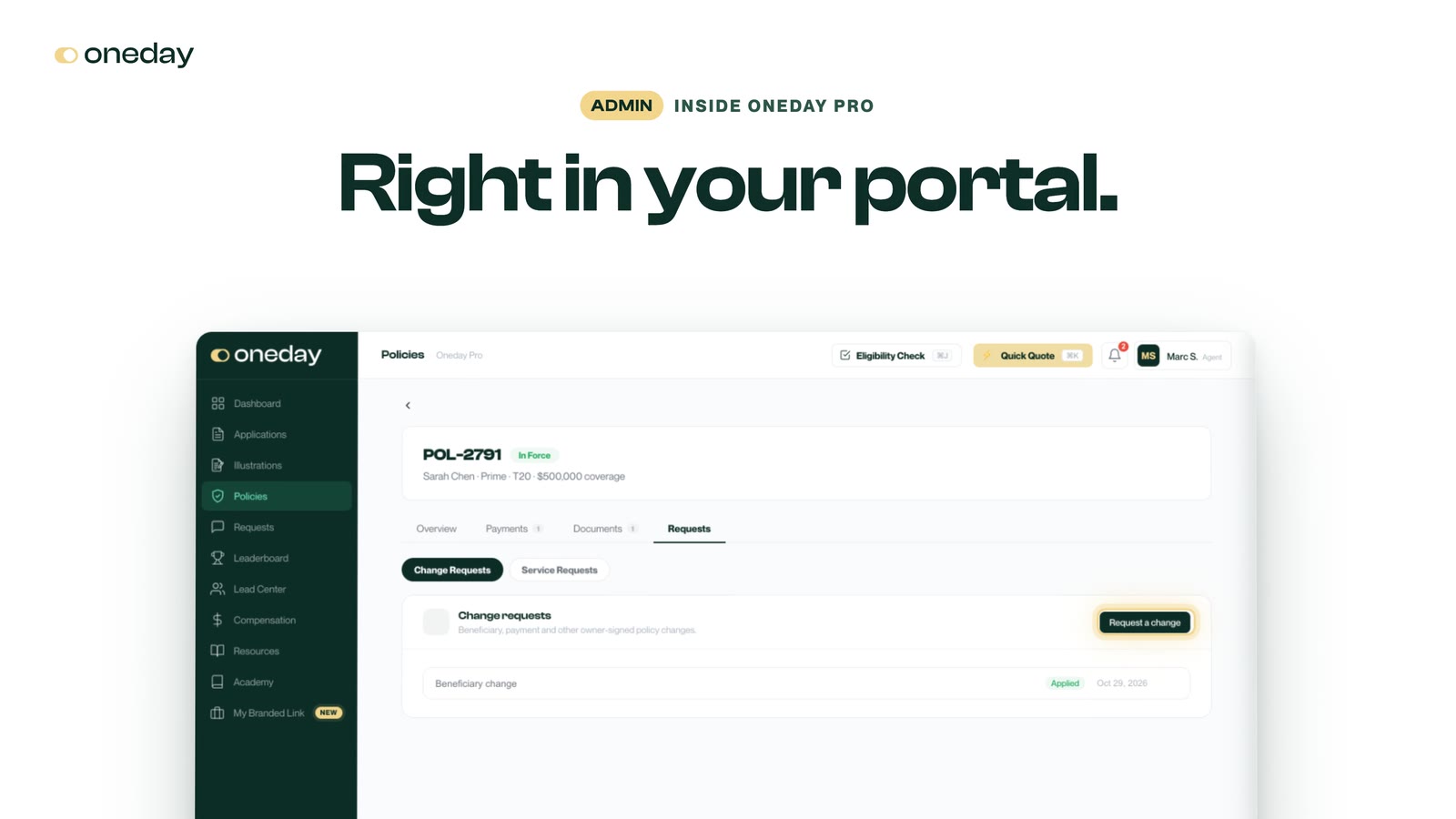
Step 2: Pick the change and fill in what’s new
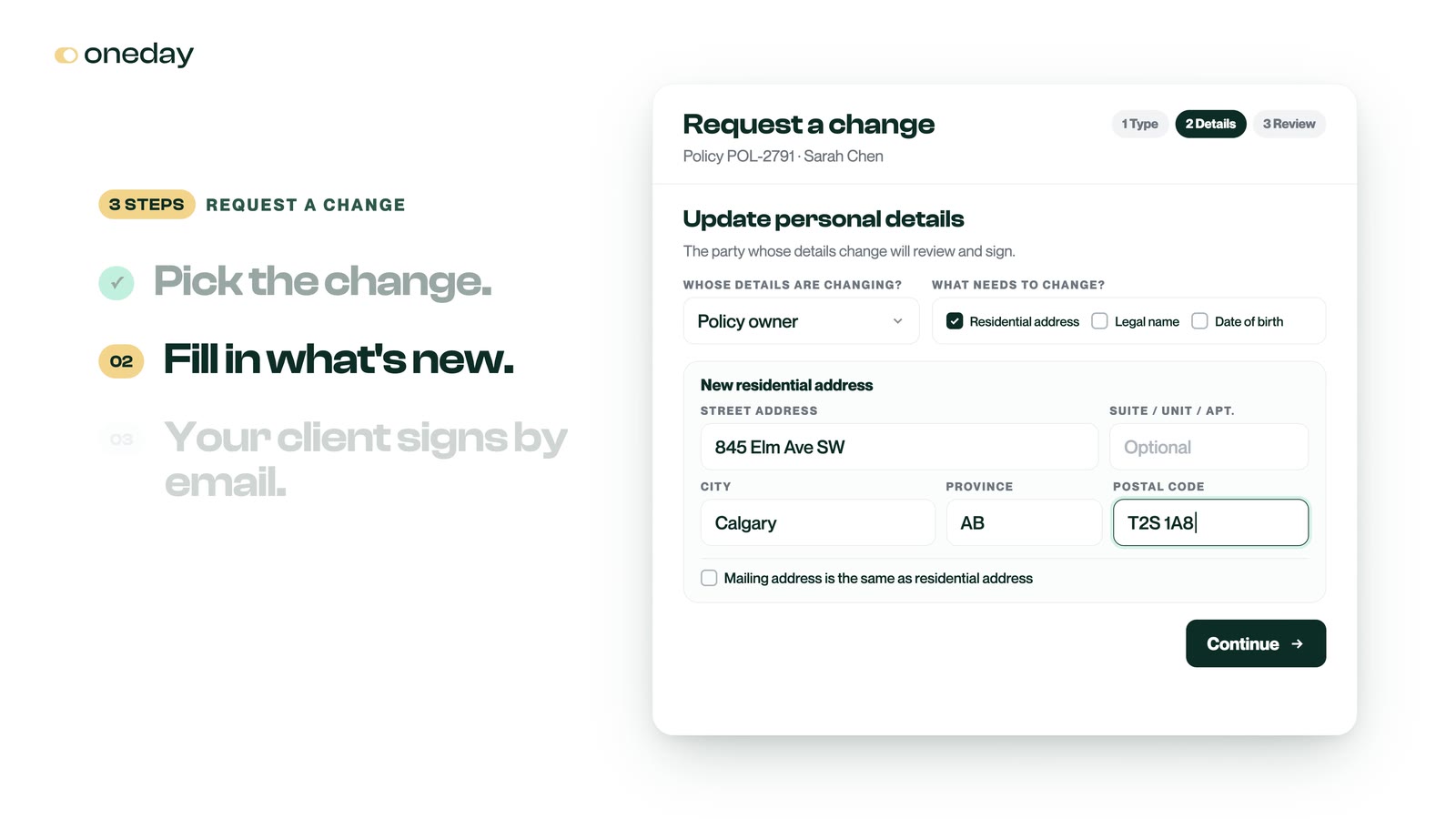
Choose the type of change. Oneday shows you only the fields that change needs, so you fill in what’s new and nothing else.
In the demo, Sarah Chen has moved from Toronto to Calgary. Pick whose details are changing, tick Residential address, and type the new one. If her mail goes to the same place, tick the box under the address and you’re done.
Step 3: Review it and send it for signature
Before anything goes out, you see the current details next to the new ones, so you can catch a typo before your client does. Click Send for signature, and your client gets an email to review and sign.
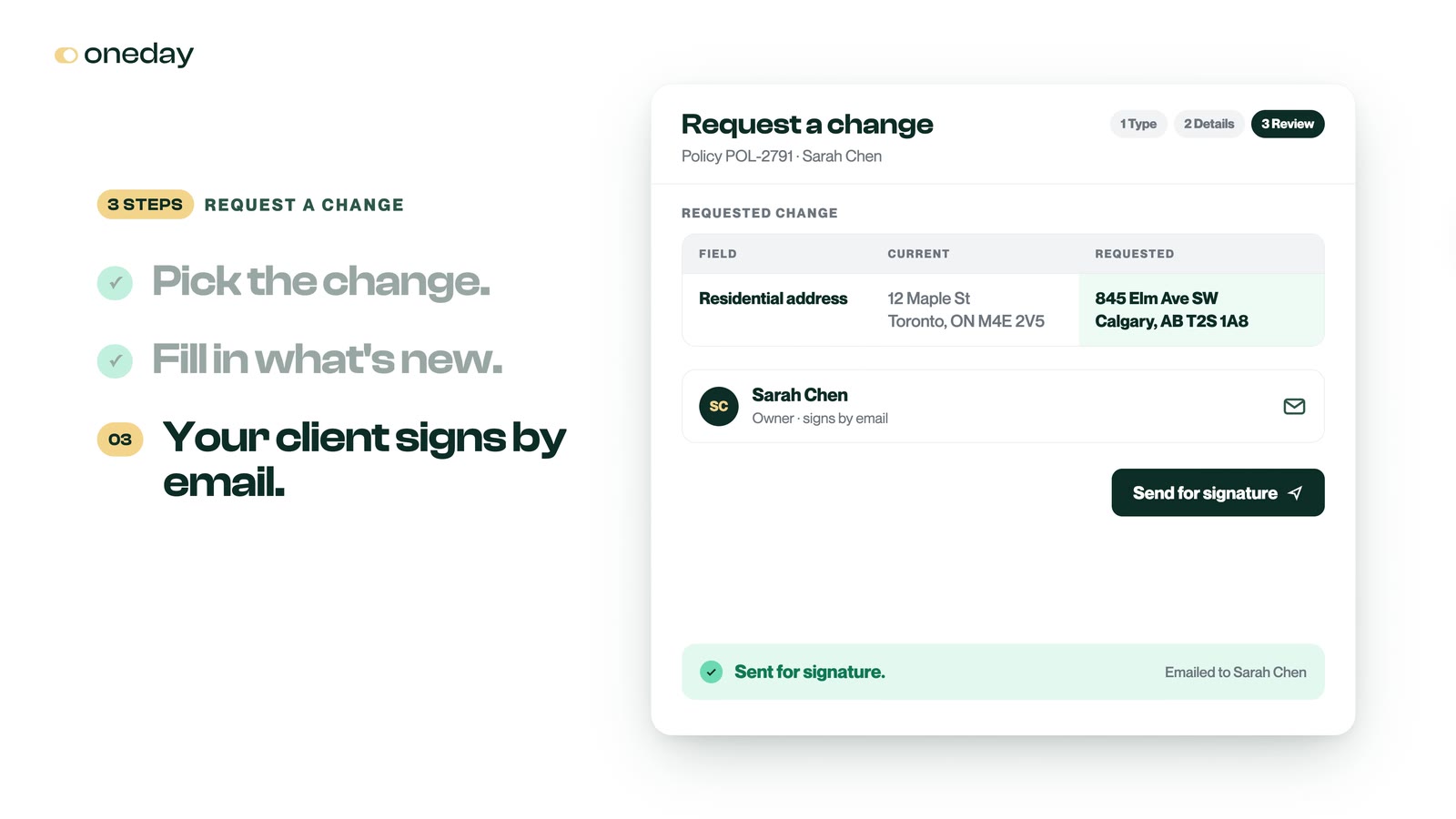
Most changes are signed by the policy owner. A few work a little differently:
- Address, name or date of birth: signed by the person whose details are changing.
- New bank account: signed by the owner, and by the payer if that’s someone else.
- Claim notification: signed by the claimant.
- Coverage reduction or term change: needs your signature as well, and you sign it right in the portal.
Watch every signature come in
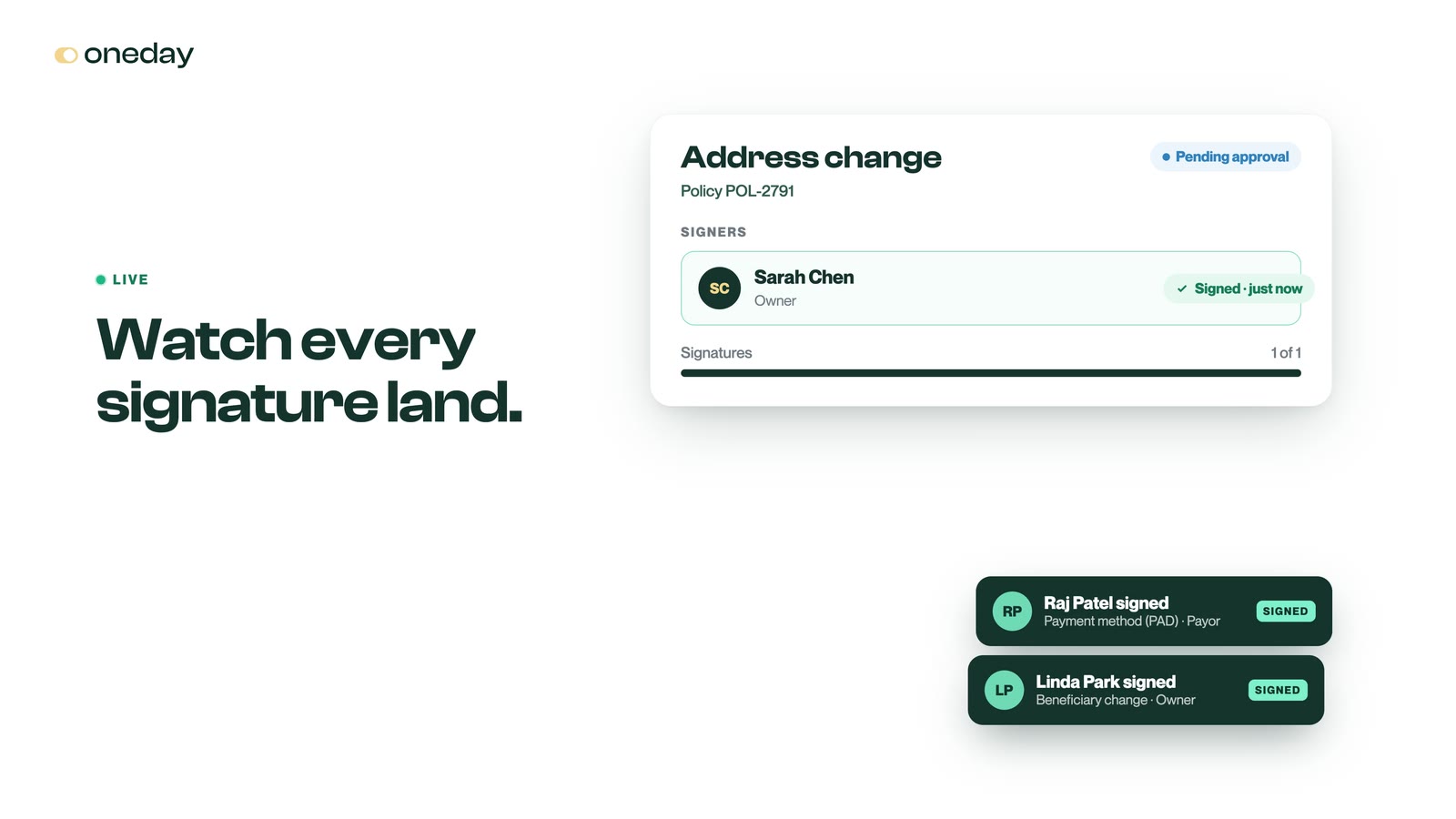
Every request has its own page that shows who has signed and who hasn’t. It updates on its own, so you never have to call anyone to ask.
Then our team takes it from there
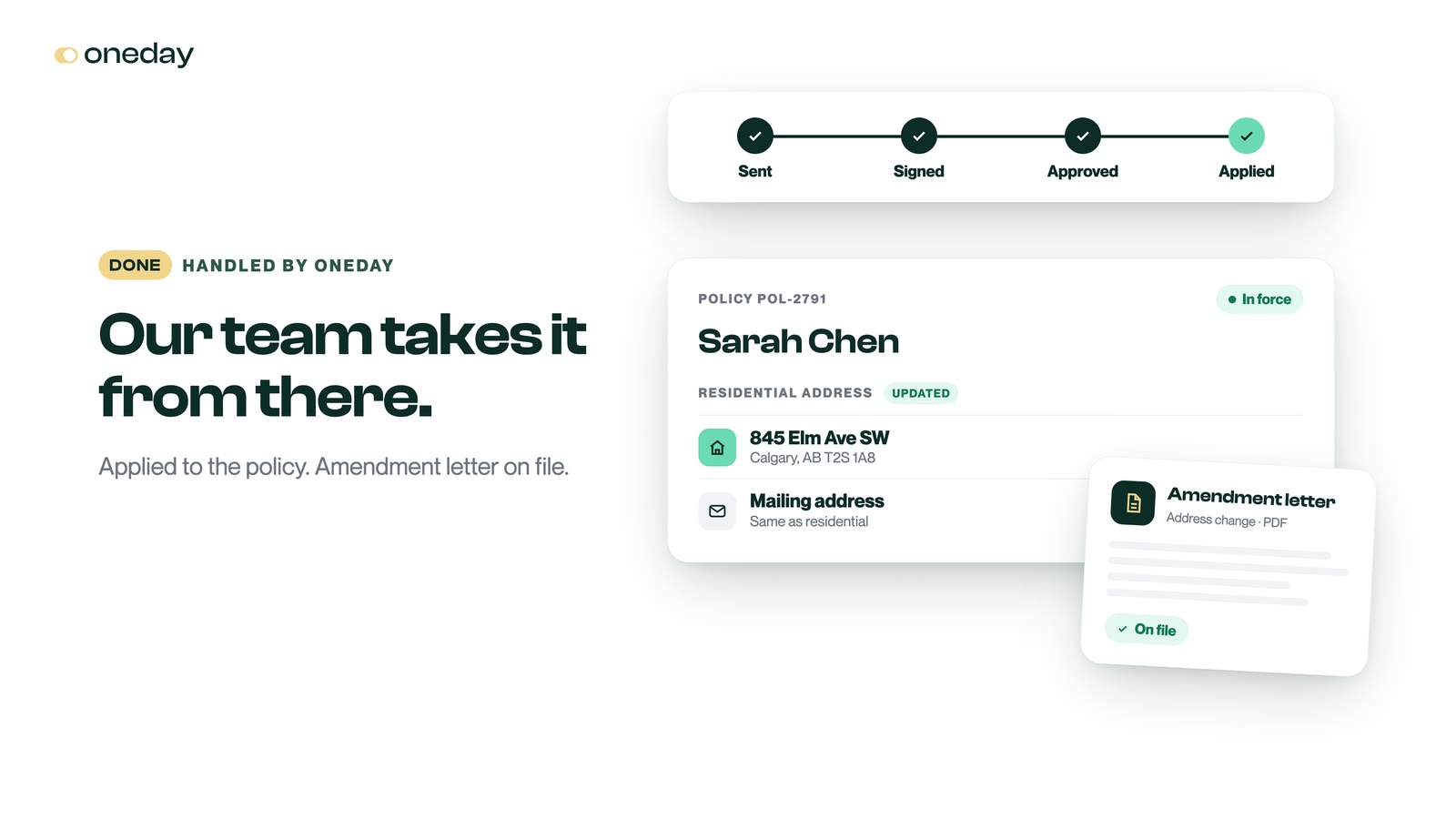
Once it’s signed, the request comes to our team for approval. When it’s approved, the change goes straight onto the policy. Nobody re-keys a form, and nothing sits in a fax tray.
In Sarah’s case, her new address is on the policy, the amendment letter is saved in the policy’s Documents tab, and she gets an email confirming the change.
For anything else, open a service request
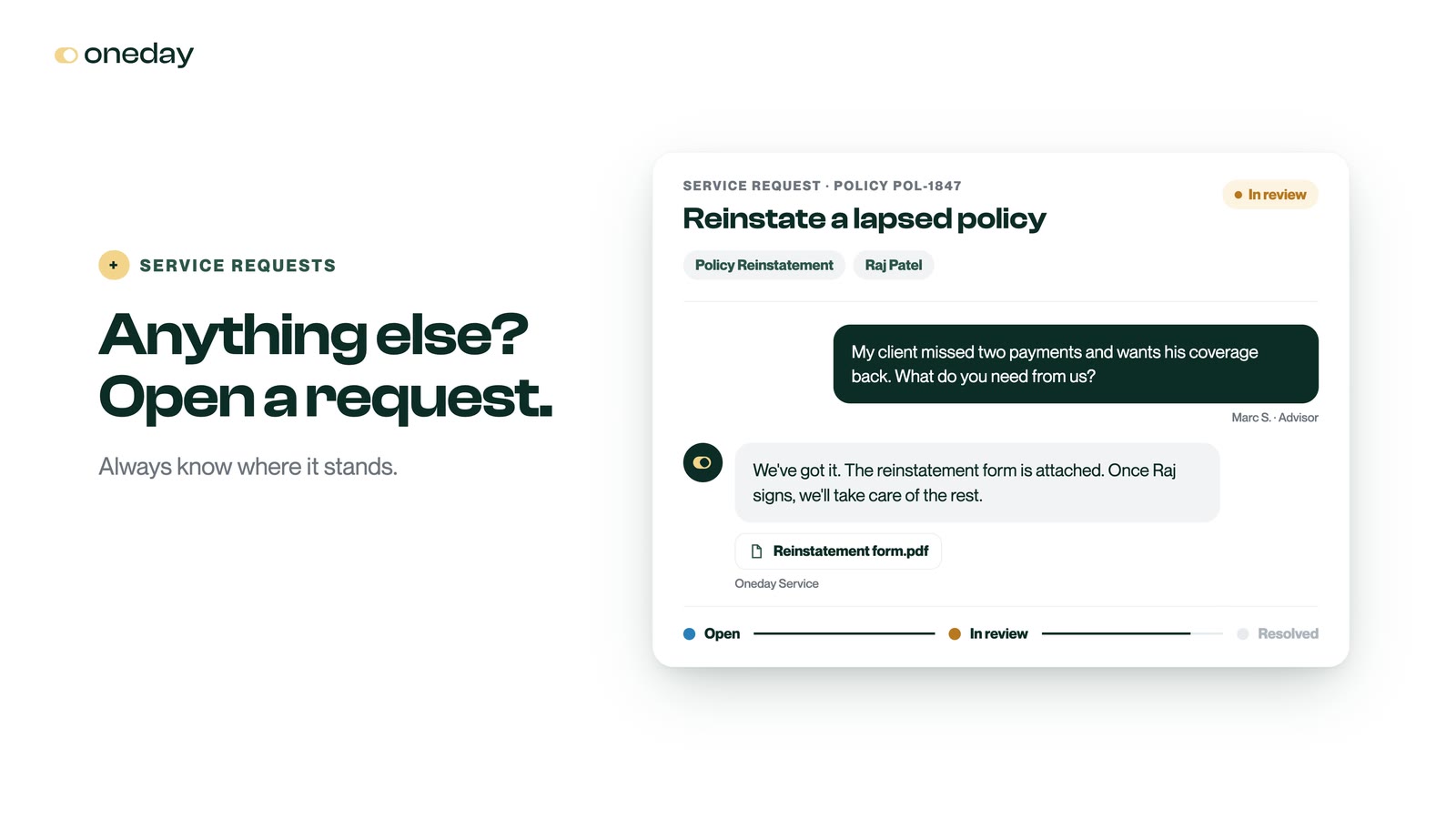
Not every request fits a form. Reinstating a lapsed policy, a question about a premium, a surrender, a change of owner or payer: open a service request on the policy, pick what it’s about and tell us what your client needs.
Our team replies right on the request, with any forms attached, and you can follow it from open to resolved.
Everything in one place
Every change request and service request you’ve opened lives under Requests in Oneday Pro, with its status beside it: awaiting signature, pending approval, applied. You’ll always know where each one stands.
No phone tag. No chasing. Just more time to build.
Try it on your next request
Change requests and service requests are in Oneday Pro today. Log in to Oneday Pro, open any of your policies, and click Request a change on its Requests tab.
Not contracted with Oneday yet? We’re onboarding Canadian life insurance advisors right now.